Contact Form Channel
Built-in contact form so visitors can ask questions without leaving the page. It contains several configurable fields and an optional GDPR checkbox.
With Boei, you can create a flexible contact form widget for your website within minutes. It is super simple!
This is how it will look like:

How to get there: Go to Setup → Widget in the top menu → click your widget → click Add Channel and select Contact Form.
Installation
Step 1. Install Boei on your website
See Installation Guides.
Step 2. Create form in Boei
It is super easy to set up your contact form. You can customize all the texts.
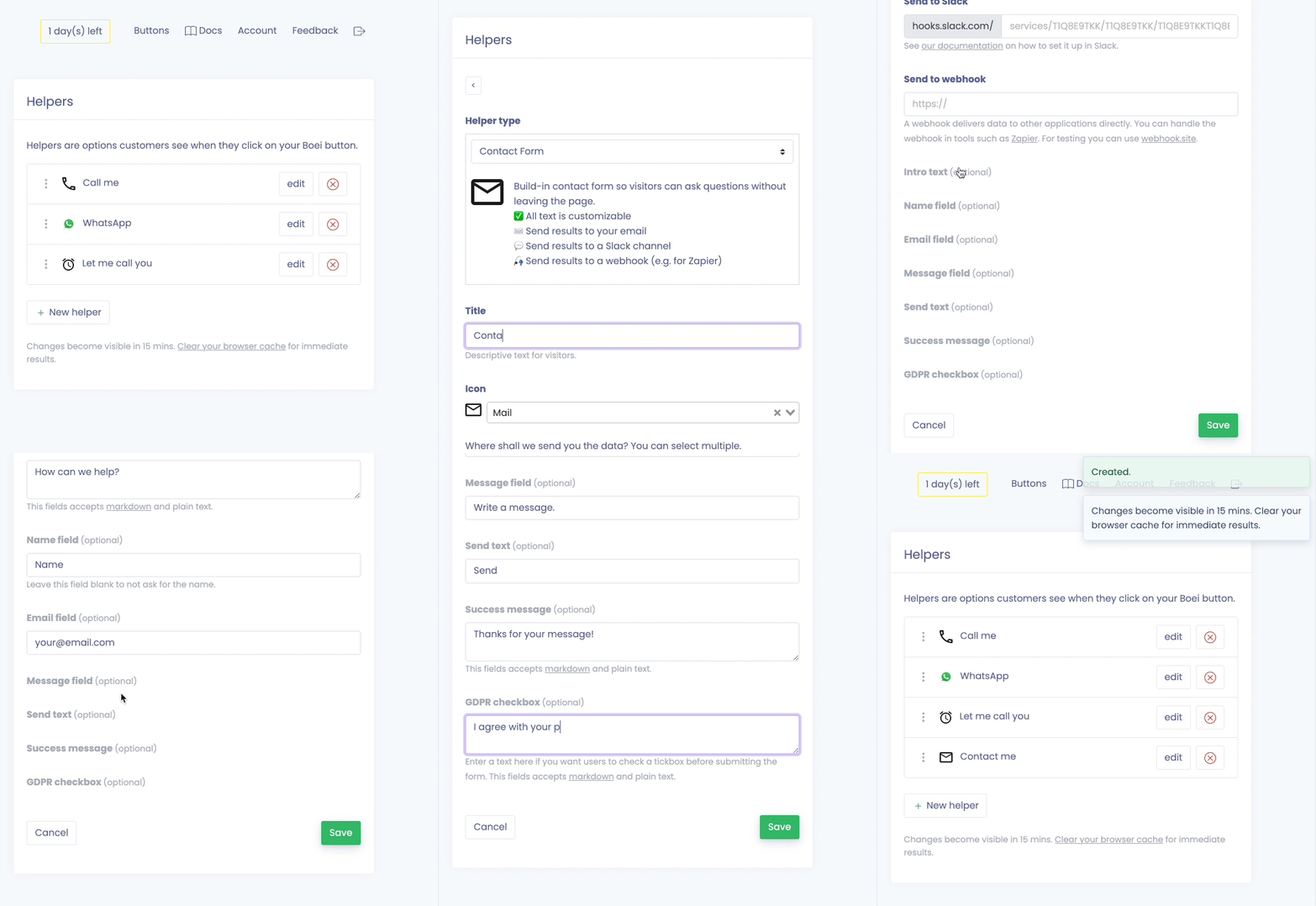
Options
Add name field
You can add a name field to capture the customer's name. To display, fill in a text in the optional field (e.g. "Name").
GDPR or other privacy checkbox
Boei can add a GDPR or other privacy related checkbox.
- To display, fill in a text in the optional field (e.g. "I agree with the privacy policy").
- This field allows markdown, so you can add a link to your privacy policy page.
- When the field is displayed, users must check the box before submitting the form.
Receiving the results
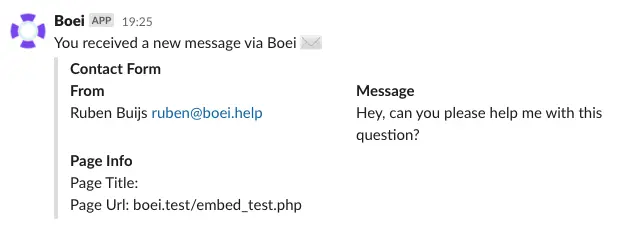
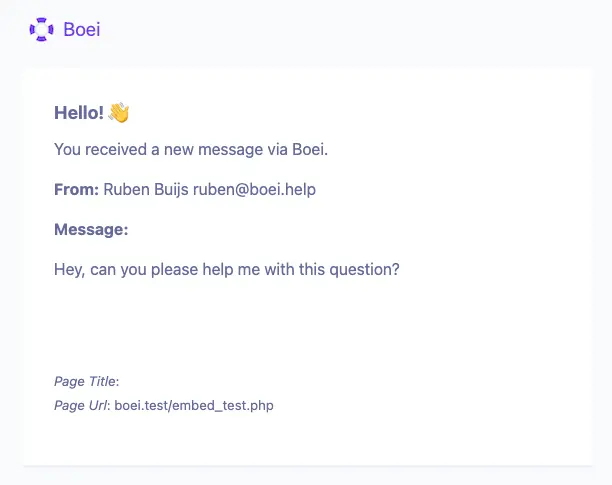
You can send the results to email, Slack, or a webhook.
Slack
Send the Boei results to Slack. The required Slack settings are explained in the Slack article.
To other services (CRM, mail service, etc)
You can connect Boei to 1000+ other available services. This article explains how you can set it all up.
Boei will send a webhook that looks like this:
{
    "timestamp": "2021-05-16T17:25:50.557179Z",
    "gdpr_checked": "true",
    "name": "Ruben Buijs",
    "email": "ruben@boei.help",
    "message": "Hey, can you please help me with this question?",
    "page_title": "Example page",
    "page_url": "yourwebsite.com"
}
Prefill fields for customers
It is possible to prefill email and name fields (if turned on). This way customers don't have to repeat their email to reach out.
To enable this, add a hidden field to your page:
<input type="hidden" value="test@test.com" id="boei_prefill_customer_email" />
<input type="hidden" value="Mr Test" id="boei_prefill_customer_name" />
Give it a test to see if everything is set up correctly.
Done!