Inbox Overview
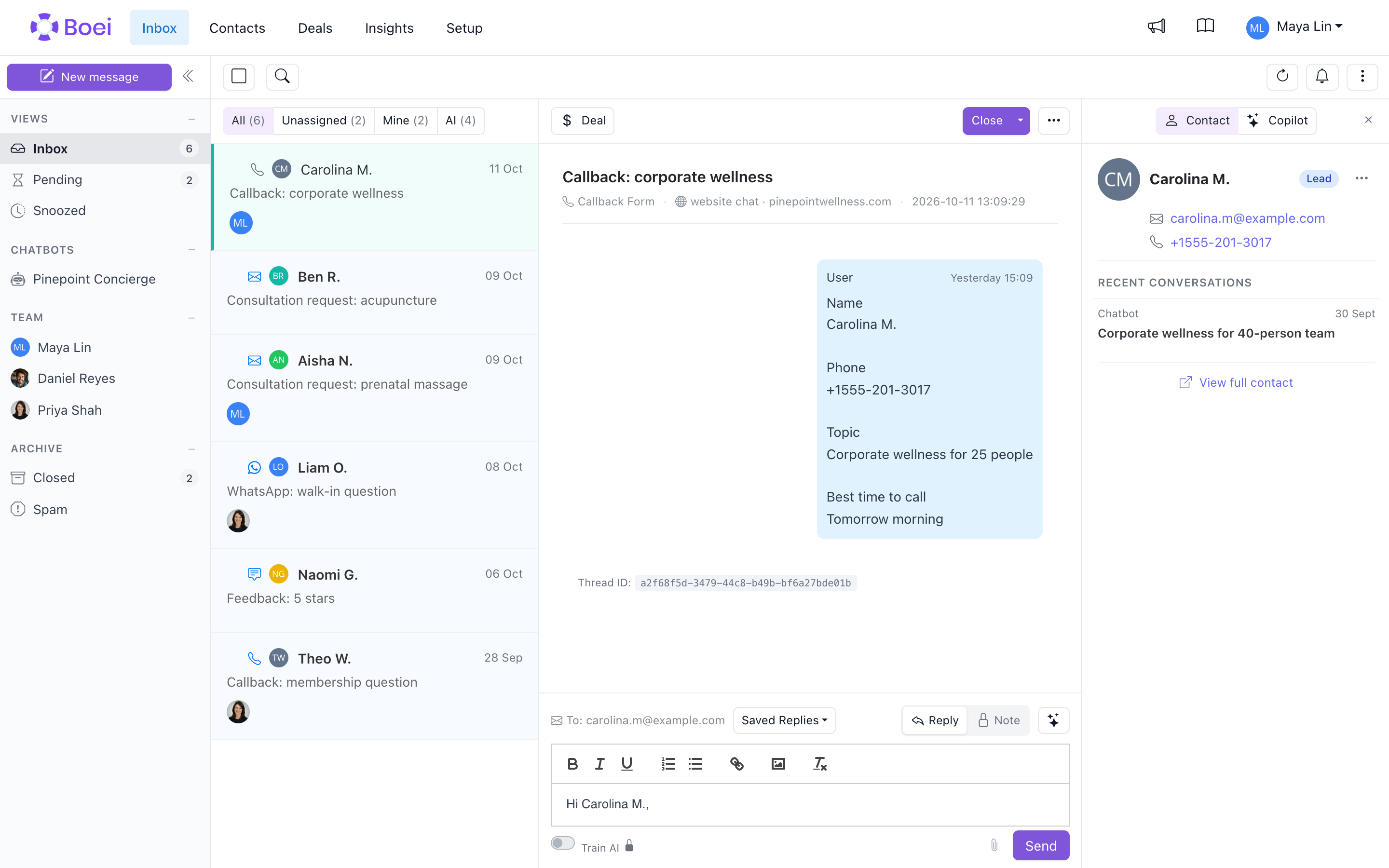
The Inbox is your central hub for managing all customer conversations. View messages from chatbots, live chats, and form submissions in one place.
How to get there: Go to Inbox in the top menu.
Accessing the Inbox
Click Inbox in the top menu to view all conversations.
Message Types
Your inbox collects messages from multiple sources:
- AI Chatbot conversations - Automated chats with customers
- Live chat sessions - Conversations handled by agents
- Form submissions - Contact forms, callbacks, feedback
- Escalated chats - AI conversations transferred to humans
Inbox Features
List order
Conversations are listed by the customer's latest message, newest at the top. Your own replies, internal notes and status changes do not move a conversation, so the list keeps its place while you work through it. A conversation only moves up when the customer writes again.
Filtering
Filter messages by:
-
Status - Open, pending, closed
-
Assignee - Me, unassigned, specific team member
-
Domain - Which website the message came from
-
Widget - Which widget/button generated the message
-
Channel - Email, WhatsApp, chat, etc.
-
User/Client - Filter by subaccount (if applicable)
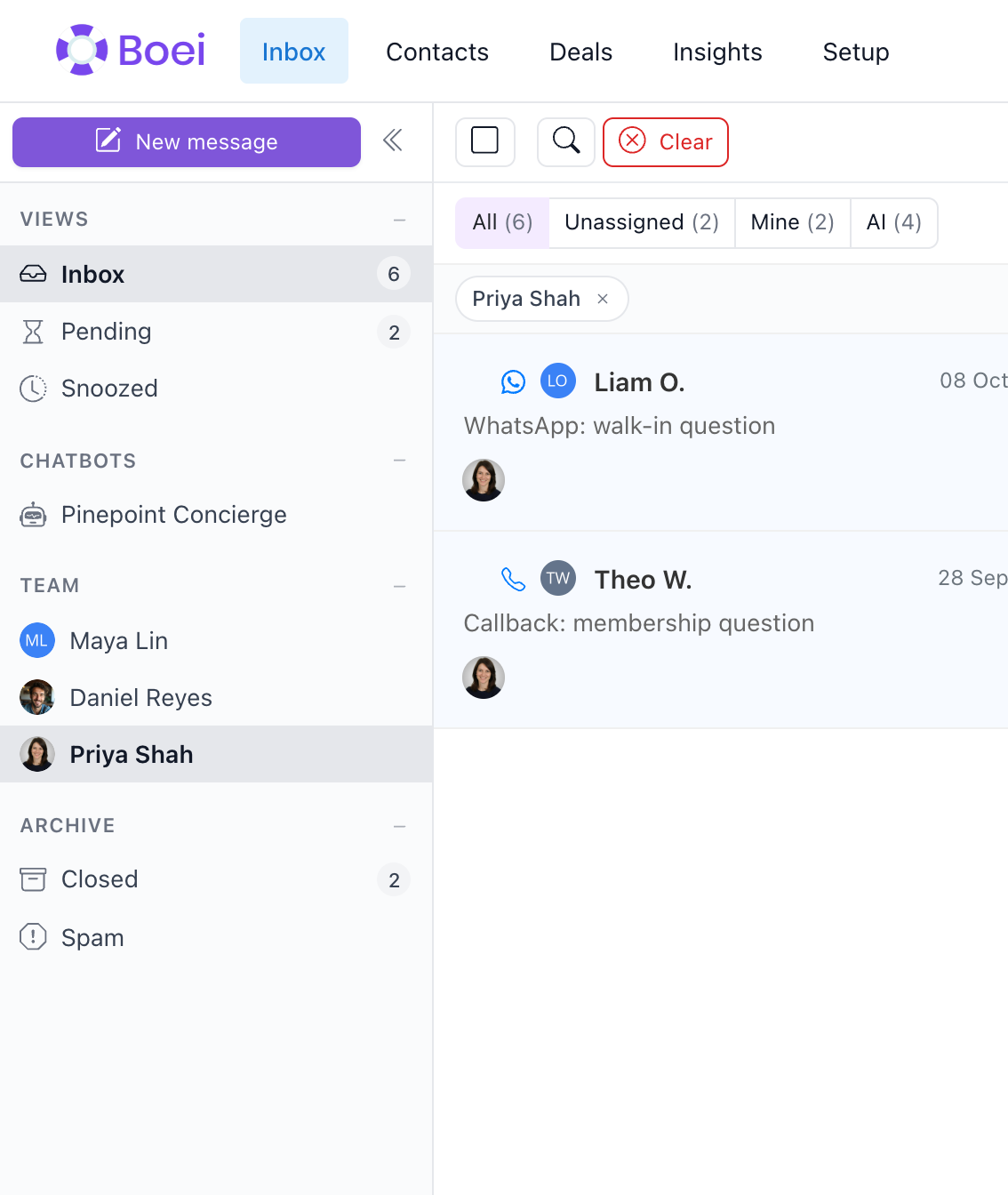
Pick a name under Team in the left sidebar to see only that person's
conversations. The name appears as a chip above the list, and Clear puts
everything back.
Searching
Search across all conversations by:
- Customer name or email
- Message content
- Keywords
Assignment
Assign conversations to team members:
- Open a conversation
- Click Assign
- Select a team member
- They'll be notified
Conversation Details
Click any conversation to view:
- Full transcript - All messages exchanged
- Customer info - Name, email, phone (if collected)
- Source - Which chatbot or form
- Timeline - When messages were sent
- Status - Current state of the conversation
How Conversations Arrive in the Inbox
AI Chatbot Conversations
When a visitor chats with your AI chatbot, the conversation is handled automatically. Once the visitor leaves or stops responding, the system:
- Closes the conversation after 20 minutes of inactivity
- Analyzes the conversation using AI (generates a summary, detects topics, sentiment)
- Delivers the transcript to your configured destinations (inbox, email, webhook)
- Reopens the conversation as an open lead in your inbox for your team to review and follow up on
This means every meaningful AI chatbot conversation will appear in your inbox as an open item — treat these as leads that may need a personal follow-up from your team. Once you've reviewed a conversation and taken any necessary action, click Mark Closed.
Live Chat and Escalated Conversations
Live chat sessions and escalated AI conversations appear in the inbox immediately when they start, so agents can respond in real time.
Form Submissions
Contact forms, callback requests, and feedback submissions appear as new open conversations as soon as they are submitted.
Managing Status
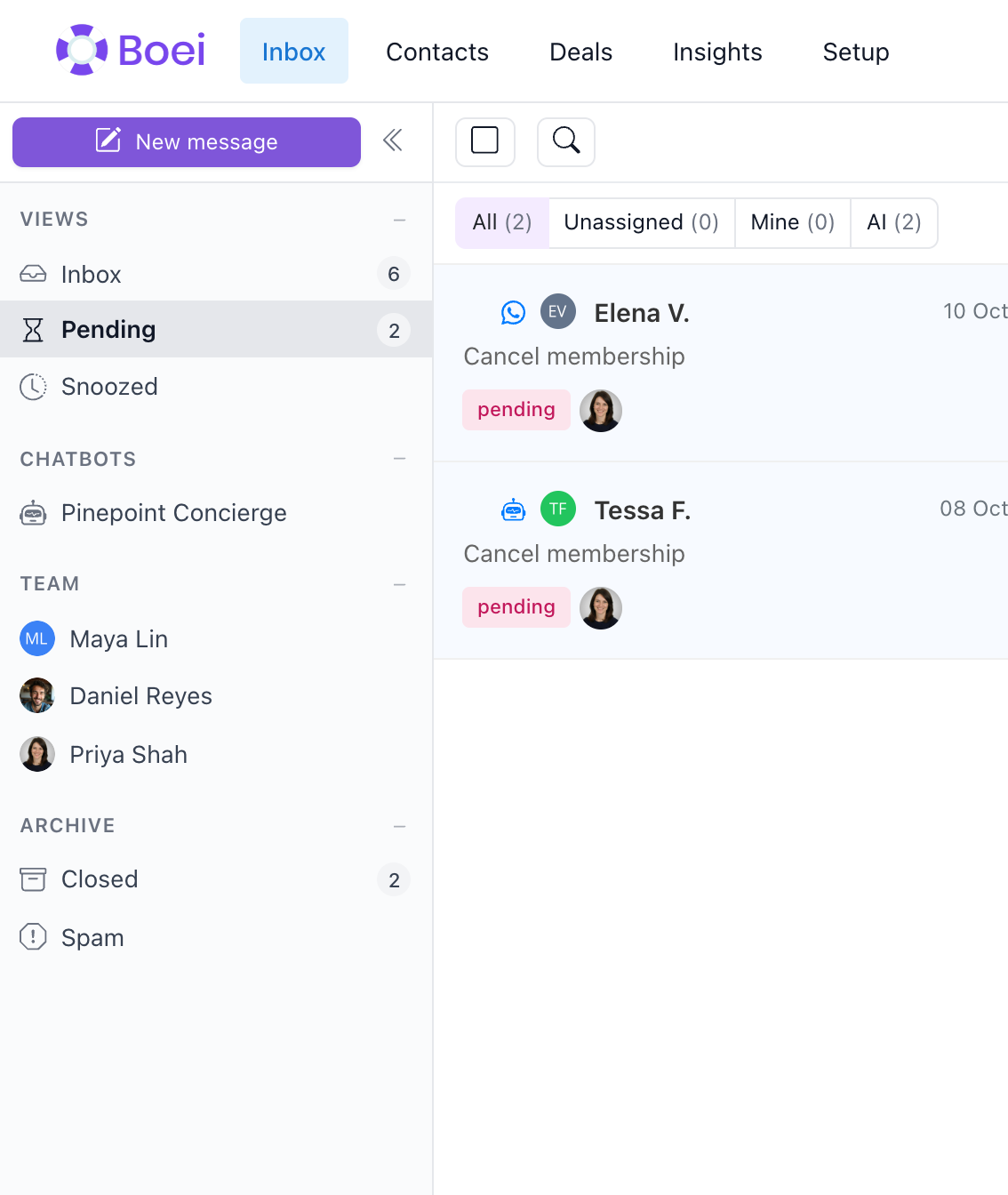
Status Types
- Open - Needs attention
- Pending - Waiting for customer response
- Closed - Completed
Each one has its own entry in the left sidebar, so you can work through them one
bucket at a time.
Changing Status
- Open the conversation
- Click Mark Closed in the toolbar, or use the status dropdown to pick a different status
Actions
Reply
Continue the conversation:
- Open the conversation
- Type your message
- Click Send
You have 20 seconds to click Undo before the message goes out. Closing the conversation or switching to another one sends it right away.
If a reply cannot be delivered, the conversation comes back as open, shows a red not sent label in the list, and the message shows Failed to send with a Retry button.
Snooze
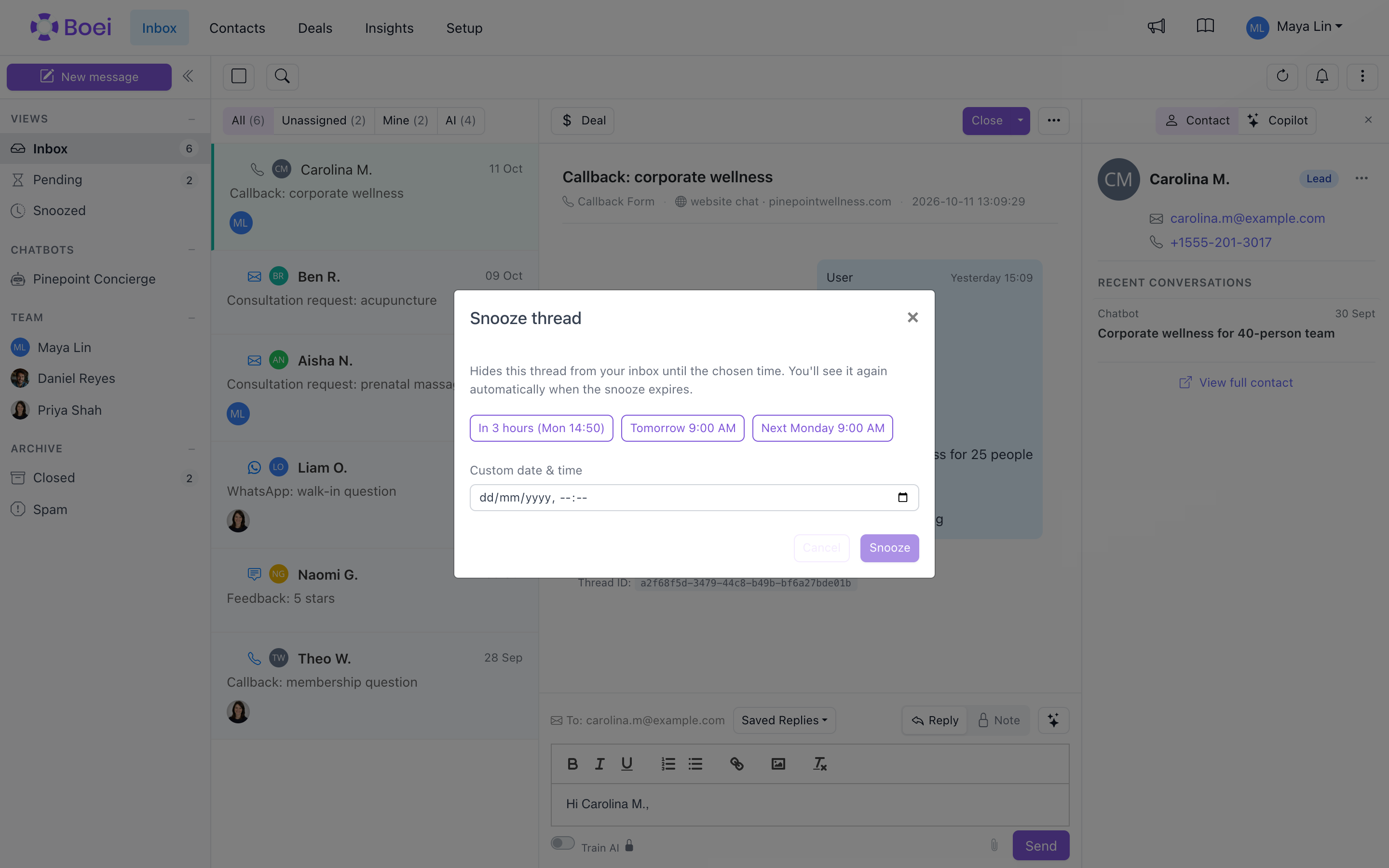
Hide a conversation until you want to see it again:
- Open the conversation
- Click the ⋯ menu in the conversation toolbar
- Click Snooze
- Pick one of the quick options, or set your own date and time
The conversation disappears from your Inbox and comes back on its own when the
time is up. You can find it in the meantime under Snoozed in the left
sidebar.
Export
Export your conversations to a spreadsheet:
- Click the ⋯ menu at the top right of the inbox
- Click Export
You get an Excel file. It contains the conversations that match whatever you are
looking at right now, so narrow the list first if you only want part of it.
AI-Generated Replies
Get help drafting responses. See AI Reply Suggestions for details.
File Attachments
Visitors can upload files from the chat widget (screenshots, PDFs, spreadsheets). They appear as downloadable chips underneath the visitor's message in the thread. See Visitor File Attachments for supported formats and limits.
Related
- Assigning Messages - Assign to team members
- Live Chat in Inbox - Handle live conversations
- Use Boei as a Mobile App - Install Boei and receive push notifications
- Inbox Actions - Create deals, reminders, export
- AI Reply Suggestions - Get AI help with responses
- Spam Filtering - Cold outreach kept out of your open conversations
- Visitor File Attachments - What visitors can send
- Contacts - View customer profiles