Teams and conversation routing
Open Settings > People and teams. It starts on People. Use Teams to manage a team's hours, routing and shared replies.
A small business can start with one team. Larger businesses can separate Sales, Support or locations.
Invite people and set access
Click Invite person, choose a team and select a team role. With one team, the team is filled in for you. A team's Members page shows its members; use Manage in People to change membership.
- A viewer can read team conversations.
- An agent can help customers and hand work over.
- A team manager can also manage the team's settings and results.
A person's Role controls account administration. Team access controls which conversations they can see and answer. Account administration does not automatically grant conversation access.
Opening hours and personal availability
Business settings provide the usual hours, timezone and shared closures. With one team, turn on Use different hours for this team only when you need an exception. Business closures still apply. Team exceptions cannot reopen a closed business.
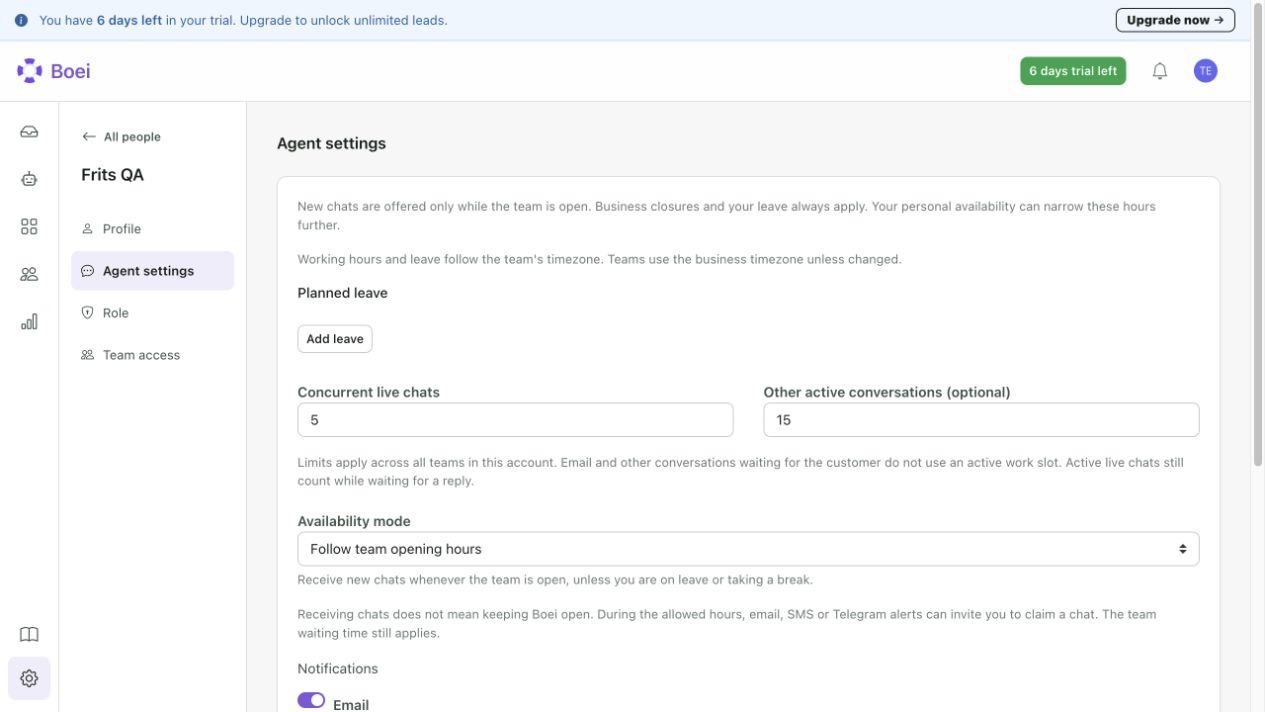
A person's Agent settings has separate sections for Availability, Work limits, Planned leave and Notifications. The opening-hours link opens the Business hours when the team inherits them, or that team's own hours.
Choose:
- Follow team opening hours for the full team schedule.
- Use personal working hours for a smaller schedule, such as Tuesday and Thursday only.
- Only when I manually go online for manual live-chat availability.
With personal working hours, Also receive chats when I manually go online allows live chats outside those personal hours while the team is open. Leave, breaks and shared closures still apply.
Working hours and leave use the receiving team's timezone. There is no separate employee timezone. Use Add leave for personal time off. Shared holiday presets belong to Business or team settings, and apply to the selected year only.
Closing the app does not stop email work from being assigned. Personal working hours, leave and breaks still apply. Live-chat email, SMS or Telegram claim alerts can reach you without keeping Boei open. The team's waiting-time limit still applies.
Two work limits per person
Each person has a Concurrent live chats limit and an optional Other active conversations limit. They apply across all teams in the selected account.
Active live chats count while the visitor is typing. Email and other tickets set to Waiting do not use the second limit. AI-only conversations and unassigned team work do not use a person's places.
When everyone is full, new work stays in the team queue. A person can deliberately choose Take anyway when claiming extra work. This does not bypass access rights, breaks or leave. A deliberate self-claim can happen outside working hours. Automatic assignment still follows working hours.
A new email reply stays with its current owner even when that person is full. If they are on leave or taking a break, the work returns to the same team. Closing the app alone does not reassign it. Returning live visitors must fit the live-chat limit.
Choose routing and assignment
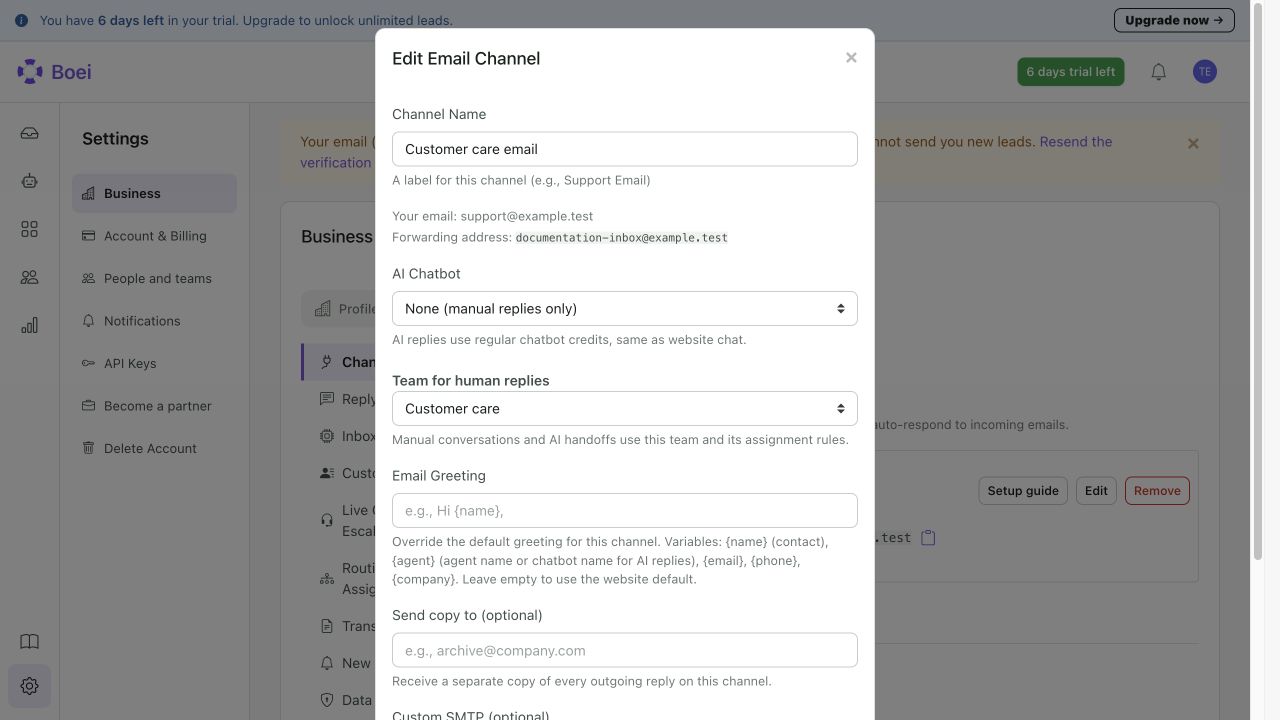
For email and messaging channels, choose Team for human replies in the Business channel settings. With one team, it is selected automatically and the team field is hidden. With several teams, each channel can have its own team. For AI conversations, use AI agent > Handoff > Team routing. With several teams, route by a fixed choice or a conversation field, such as location. A form can collect missing information.
Once work reaches a team, its Routing setting decides assignment. Manual claim leaves work in the queue. Round robin gives eligible people turns. Balanced assignment chooses someone with less work of the same type. Availability and the matching work limit apply.
Work together
Live chat and email use the same conversation view. Internal notes stay private. In an internal note, use the @ button or type @ and choose a colleague to alert them without changing ownership. You can mention several people. Only colleagues who can reply in the team appear. With no other eligible colleagues, the button is hidden. Removing a mention before saving removes that alert. A notice shows when someone is writing. If newer messages arrive while you draft, sending is blocked and your draft is kept.
In an open conversation, choose … > Assign or transfer to pick a team and a person. The optional handoff note is private and also works for a handoff within the same team.
Select several conversations and choose Transfer to move a selection. Add a handoff note. The whole selection moves together or none of it moves. A transfer does not grant access to other conversations in the destination team.
Available now or Not available now shows the current result of your availability and the team hours. The schedule label explains the setting, rather than claiming you are online. Choose Take a break while available to stop receiving new work. Existing work stays assigned until a new customer reply triggers the absence check or work is transferred.
Notifications and approvals
Settings > Notifications is the central rule list. Team and AI-agent notification screens show the applicable rules from that same list. They are not separate copies. Personal delivery preferences decide how someone receives alerts.
AI-action approvals are separate from conversation ownership. See Human approval of AI actions.
Team results and feedback
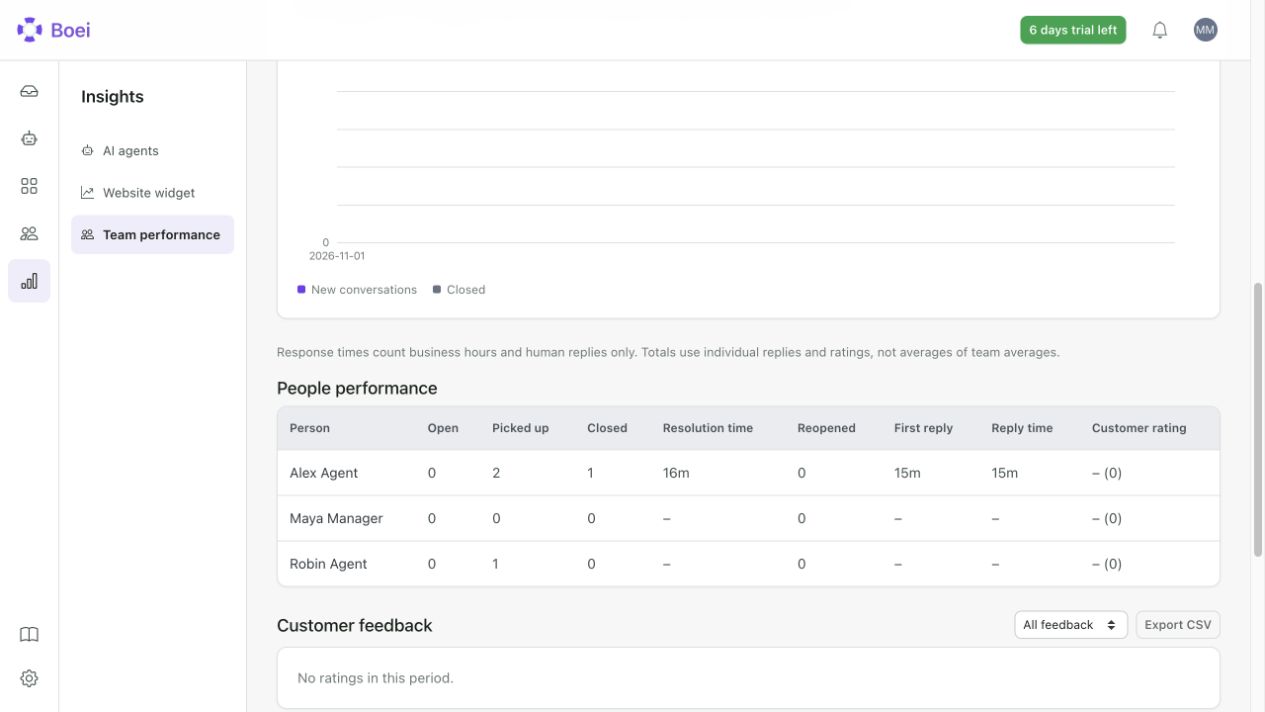
Open Insights > Team performance. Choose a period, team and channel. Current workload is a separate snapshot. Completed human work, reply times, elapsed resolution time, recorded waiting time, reopening and first-contact resolution appear in the selected period. AI-only completions and test conversations do not count as human completions.
Resolution time is elapsed time, not minutes spent working. Missing older measurements stay out of averages. First-contact resolution uses one email reply round or one live contact. Reopening can change it; recent results are marked provisional.
Visitors can give one rating and an optional comment. After human handoff, the rating belongs to the human handling segment. It is not also counted for the AI.
Changing access or archiving a team
Before removing someone's access, finish or reassign their open work and pending approvals. Update AI-action approvers and notification destinations that name them. The app explains what blocks the change. Closed history remains available.
Archive team stops new work and preserves people, history and settings. The team can be restored. First close or transfer open conversations and replace saved routing, channel and notification destinations. Archiving a team does not delete its members or conversations.
Business closures also affect new appointment choices and scheduled Deal follow-up emails. They do not cancel existing appointments. Extra team closures and personal leave affect team work, not Business appointment or Deal schedules.
When nobody picks up
In Teams > Routing, choose When nobody is available. Contact collection starts immediately when the team is closed or nobody is eligible. The conversation remains in Team Inbox for follow-up.
If nobody picks up, wait this many minutes is for a conversation that was waiting for a person. At the timeout, the visitor gets the unavailable message. With contact collection selected, the chat switches to follow-up and asks for an email if one is missing. It remains visible to your team. This is not a delay before the initial form when everyone is unavailable.
Invitation roles and archiving
An invitation has two choices: Account role controls account administration or billing. Role in [team name] controls what the person can do in that team. A short explanation follows each role choice. With one team, that team is already selected.
Archiving preserves people, settings and conversation history. Close or transfer real open human conversations first. Test conversations and conversations still handled only by AI do not block this check. Saved channel, AI handoff and approval destinations still need an active replacement before their team can be archived.
The unavailable-message field starts with an editable draft. Keeping that default lets the system use its normal availability message. Your saved custom message is kept when you reopen the settings.
 Powered by ProductLift