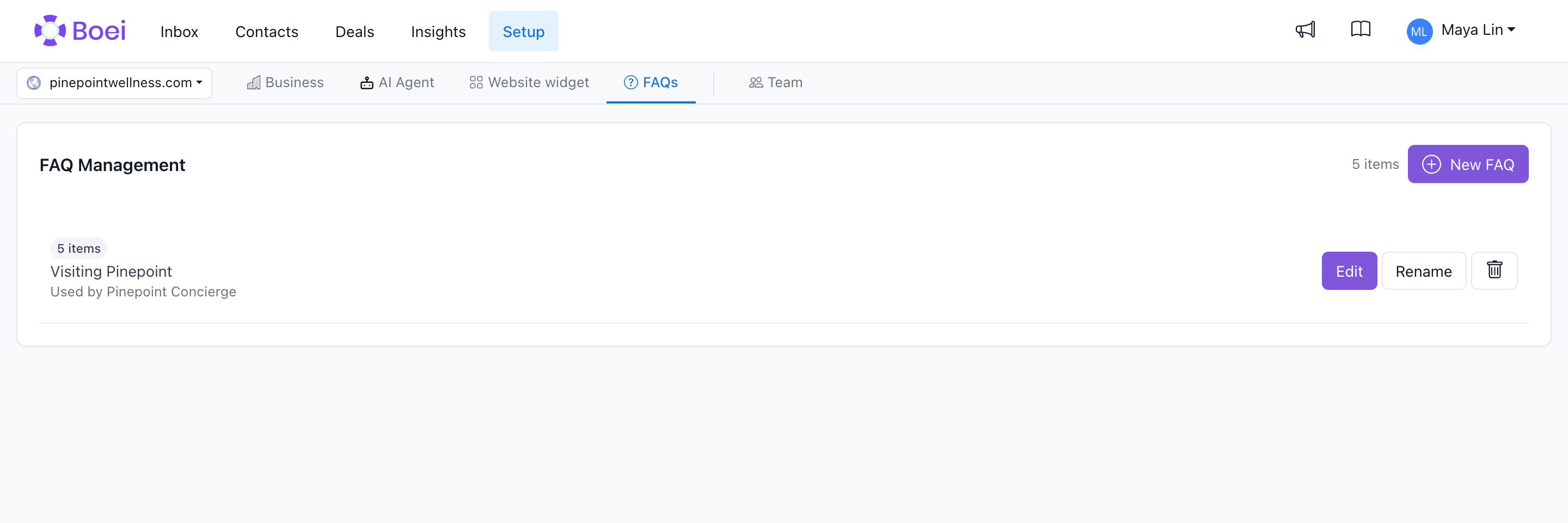
FAQ Overview


Create a searchable Frequently Asked Questions widget that helps visitors find answers instantly, right from your contact widget.

How to get there: Go to Setup → FAQs in the top menu → click your FAQ widget.

What is the FAQ Widget?

The FAQ Widget is a built-in feature that displays common questions and answers directly in your Boei widget. Visitors can:

  • Browse through your FAQs
  • Search for specific topics
  • Get instant answers without contacting you
  • Seamlessly transition to live chat if needed

Benefits

For Your Visitors

Instant answers - No waiting for email replies or chat agents
24/7 availability - Get help anytime, even outside business hours
Easy search - Find answers quickly with search functionality
Self-service - Solve problems independently

For Your Business

Reduce support volume - Answer common questions automatically
Scale support - Help unlimited visitors simultaneously
Improve efficiency - Free up your team for complex questions
Better UX - Visitors get help faster
SEO benefit - FAQ content is indexed by search engines

How It Works

  1. Visitor clicks your widget
  2. FAQ appears as a channel option (alongside chat, phone, etc.)
  3. Visitor clicks FAQ
  4. Search box and FAQ list appear
  5. Visitor searches or browses
  6. Clicks question to see answer
  7. Can transition to live chat if answer doesn't help

Setting Up Your FAQ Widget

Step 1: Create an FAQ Collection

  1. Go to FAQs in your Boei dashboard
  2. Click "Create New FAQ"
  3. Give it a descriptive name (e.g., "Product FAQs", "Support Questions")
  4. Save

You can create multiple FAQ collections for different purposes.

Step 2: Add FAQ Items

For each FAQ collection:

  1. Click "Add Question"
  2. Enter the Question (what visitors ask)
  3. Enter the Answer (your response)
  4. Click Save
  5. Repeat for each question

Tips:

  • Questions should match how visitors actually ask (check your support emails)
  • Answers should be clear, concise, and complete
  • Use formatting (bold, lists, links) for readability
  • Include relevant links to documentation or product pages

Step 3: Enable FAQ in Your Widget

  1. Go to your Widget Settings
  2. Navigate to Channels
  3. Find FAQ channel
  4. Enable it
  5. Select which FAQ collection to show
  6. Set the position (order in channel list)
  7. Save

Step 4: Customize Appearance (Optional)

You can customize:

  • FAQ icon
  • Channel label (e.g., "FAQs", "Help Center", "Common Questions")
  • Color scheme (inherits from widget branding)

Creating Effective FAQs

Question Guidelines

Write questions as visitors would ask them:

Good:

  • "How do I reset my password?"
  • "What's included in the Pro plan?"
  • "Do you ship internationally?"

Bad:

  • "Password Recovery Protocol" (too formal)
  • "Plans" (too vague)
  • "Shipping" (not a question)

Answer Guidelines

Keep answers:

  • Clear - Use simple language
  • Complete - Fully answer the question
  • Concise - Get to the point quickly
  • Actionable - Include steps or next actions
  • Formatted - Use headings, lists, bold

Good answer structure:

## Short direct answer first

Additional context if needed.

**Steps:**
1. Do this
2. Then this
3. Finally this

[Link to detailed documentation](URL)

Answer Formatting

Boei FAQ supports Markdown formatting:

Bold text:

**important point**

Bullet lists:

- Point one
- Point two
- Point three

Numbered lists:

1. First step
2. Second step
3. Third step

Links:

[Link text](https://example.com)

Headings:

## Subheading

Length Recommendations

  • Question: 5-15 words
  • Answer: 50-200 words
  • For longer answers: Link to full documentation instead

Organizing Your FAQs

Reordering FAQ Items

Questions appear in the order you set:

  1. Go to your FAQ collection
  2. Find the list of questions
  3. Drag questions to reorder (or use position numbers)
  4. Save

Best practices:

  • Put most common questions first
  • Group related questions together
  • Move rarely clicked questions to bottom (check analytics)

Multiple FAQ Collections

Create separate collections for different purposes:

Example setup:

  • "Product FAQs" - For product pages
  • "Billing FAQs" - For pricing/account pages
  • "Technical FAQs" - For documentation/help center

Then use different widgets (or page conditions) to show the right FAQ for each section of your site.

FAQ Search Feature

The FAQ widget includes built-in search:

How Search Works

  1. Visitor types a query (e.g., "shipping")
  2. System uses AI to understand intent
  3. Shows most relevant questions/answers
  4. Results are ranked by relevance
  5. Visitor clicks to see full answer

Search is Powered by AI Embeddings

Behind the scenes:

  • Each FAQ answer is converted to a semantic "embedding"
  • When visitors search, their query is also embedded
  • System finds FAQs with similar meaning (not just matching keywords)
  • Results are sorted by semantic similarity

This means:

  • "How to refund?" matches "What's your return policy?"
  • "Shipping time?" matches "How long does delivery take?"
  • Synonyms and related terms are understood

To help visitors find answers:

Use natural language:

  • ✅ "How long does shipping take?"
  • ❌ "SLA: Delivery timeframes"

Include common variations in answers:

Q: How do I cancel my subscription?

A: To cancel your subscription (also called "downgrade"
or "close account"):
1. Go to Settings...

Cover related topics in one FAQ:

Q: What payment methods do you accept?

A: We accept credit cards (Visa, Mastercard, Amex),
PayPal, and bank transfers for enterprise customers.

Analytics & Optimization

Track FAQ Performance

Monitor:

  • Search queries - What are visitors searching for?
  • Click rates - Which FAQs get clicked most?
  • Transition to chat - Which FAQs don't satisfy visitors?

Use this data to:

  • Add missing FAQs (common searches with no good results)
  • Improve low-performing FAQs (high search, low satisfaction)
  • Reorder based on popularity

A/B Testing FAQs

Test different versions:

Test A:

Q: What's your return policy?
A: We offer 30-day returns on all products...

Test B:

Q: Can I return my order?
A: Yes! Returns are free and easy. You have 30 days...

Compare which gets better engagement.

Best Practices

1. Start with Top 10

Don't try to add 100 FAQs on day one:

  • Start with 10 most common questions
  • Check your support emails for patterns
  • Add more over time

2. Update Regularly

FAQs should evolve:

  • Add new questions as they emerge
  • Update answers when products/policies change
  • Remove outdated FAQs
  • Refresh based on analytics

For complex topics:

  • Give short answer in FAQ
  • Link to full documentation for details

Q: How do I integrate with Salesforce?

A: We offer a native Salesforce integration.

**Quick setup:** Install our app from AppExchange
and connect your account.

[See full integration guide](URL)

4. Include Visual Examples

When helpful, add images or videos:

Here's what the settings page looks like:

![Settings Screenshot](URL)

5. Cross-reference FAQs

Link related FAQs:

A: ...steps to upgrade your plan.

**Related:**
- How to change your billing cycle
- What's included in each plan

6. Encourage Chat Transition

End complex FAQs with:

"Still have questions? Click 'Chat' to speak with our team."

This bridges self-service and human support.

Common Use Cases

E-commerce

Top FAQs:

  • Shipping time and costs
  • Return/refund policy
  • Product sizing/specifications
  • Order tracking
  • Payment options

SaaS Product

Top FAQs:

  • How to get started
  • Pricing and plan differences
  • Integration options
  • Account management
  • Billing questions

Service Business

Top FAQs:

  • How to book/schedule
  • Pricing and packages
  • Service area/availability
  • Cancellation policy
  • What to expect

Local Business

Top FAQs:

  • Hours of operation
  • Location and parking
  • Accepted payment methods
  • Appointment required?
  • Contact information

Advanced Features

FAQ + AI Chatbot Integration

If you have both FAQ and AI Chatbot:

  • AI can reference your FAQs in responses
  • FAQ searches use same AI embedding system
  • Visitors can start with FAQ, then chat with AI
  • Seamless experience between both

FAQ Translations

For multi-language sites:

  • Create separate FAQ collections per language
  • Use page conditions to show correct language
  • Or use same FAQ with translated questions/answers

FAQ for Different User Segments

Create targeted FAQs:

  • Free users: Basics and limitations
  • Premium users: Advanced features
  • Enterprise: SLA, support options
  • Show different FAQ based on user login status

Requires custom implementation.

Troubleshooting

Visitors can't find answers

Check:

  • Are you using natural question phrasing?
  • Do answers contain relevant keywords?
  • Are embeddings generated? (may take a few minutes)

Fix:

  • Rewrite questions to match how users ask
  • Add common search terms to answers
  • Wait for embeddings to process, then test search

FAQ not appearing in widget

Check:

  • FAQ channel is enabled in widget settings
  • FAQ collection is selected
  • FAQ collection has at least one question
  • Widget is properly installed on website

Fix:

  • Enable FAQ channel
  • Add questions to collection
  • Verify widget installation

Search returns wrong results

Cause: Semantic search might match unexpected similarities

Fix:

  • Add more context to answers
  • Use specific terminology
  • Include common keywords visitors might search

FAQ items not appearing

Check:

  • Items are saved (not in draft)
  • Collection is selected in widget
  • No custom filters applied

Formatting not working

Use Markdown syntax:

  • **bold** for bold
  • - item for bullets
  • [text](url) for links

Test in preview mode.

Quick Start Checklist

  • [ ] Create FAQ collection
  • [ ] Add 5-10 common questions
  • [ ] Write clear, formatted answers
  • [ ] Enable FAQ channel in widget
  • [ ] Select FAQ collection
  • [ ] Set channel position
  • [ ] Test search functionality
  • [ ] Check on mobile device
  • [ ] Monitor analytics
  • [ ] Iterate based on data

Maintenance Schedule

Weekly:

  • Review search queries (what are people looking for?)
  • Check unanswered searches

Monthly:

  • Add 2-3 new FAQs based on recent support questions
  • Update outdated answers
  • Review analytics, reorder based on popularity

Quarterly:

  • Full content audit (remove outdated, consolidate similar)
  • A/B test question phrasing for top FAQs
  • Verify all links still work

FAQ vs AI Chatbot

Feature FAQ Widget AI Chatbot
Type Static Q&A Dynamic conversation
Setup Manual (you write each answer) Train on documentation
Maintenance Update manually Auto-updates when training data changes
Coverage Only questions you add Any question in training data
Accuracy 100% (you wrote it) 95%+ (AI interpreted)
Best for Common questions, official answers Broad coverage, complex queries

Use both together:

  • FAQ for top 20 most common questions
  • AI Chatbot for everything else
  • Visitors can easily switch between them

Summary

FAQ Widget is a powerful self-service tool that:

  • Answers common questions instantly
  • Reduces support workload
  • Improves visitor experience
  • Scales infinitely

Start with 10 FAQs, enable search, monitor analytics, and iterate. Most businesses see 20-40% reduction in support volume after implementing a well-maintained FAQ widget.