People Overview
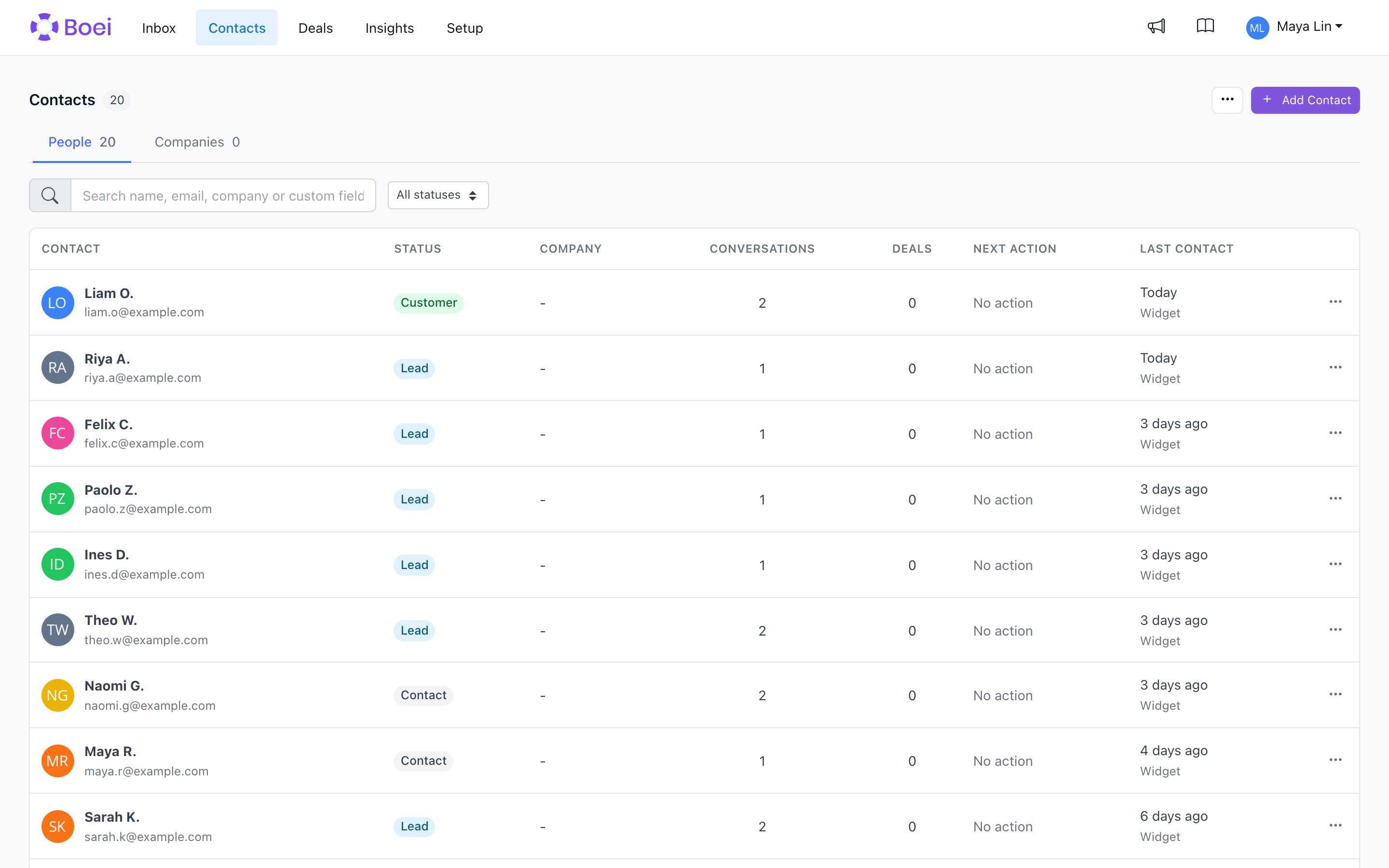
The People page gives you a complete view of everyone who has interacted with your business through Boei. Track contact details, view conversation history, and manage relationships.
How to get there: Go to Contacts in the top menu, then choose People.
How Contacts Are Created
Contacts are automatically created when visitors:
- Submit a form (contact, callback, newsletter)
- Provide their email in a chatbot conversation
- Complete lead capture fields
- Engage in live chat
Viewing People
Go to Contacts → People to see all your contacts. Use the People and Companies switch to move between individual contacts and company records.
Contact List
The contact list shows:
- Name - Customer's name (if provided)
- Email - Primary contact method
- Phone - If collected
- Status - Lead, customer, etc.
- Last interaction - Most recent activity
- Source - How they found you
Filtering
Filter your contacts by:
- Status - Contact, Lead, Customer, Inactive
- User/Client - Filter by subaccount (if you have subaccounts)
Searching
Search by name, email, phone number or company name to find specific contacts.
The search also looks inside your own custom fields. So if you store a second email address, an order number or a customer number on a contact, you can type that in the search box and the contact comes up.
Contact Details
Click a contact to view their full profile:
Contact Information
- Name
- Email address
- Phone number
- Company (if collected)
Conversation History
See all interactions with this contact:
- Chatbot conversations
- Live chat sessions
- Form submissions
- Messages exchanged
Activity Timeline
Track when and how they engaged:
- First contact date
- Recent interactions
- Status changes
Contact Status
Organize contacts with status labels:
- Contact - General contact
- Lead - Potential customer
- Customer - Active customer
- Inactive - No longer active
Changing Status
- Open the contact
- Click the status field
- Select new status
When a person is linked to a company, the status belongs to the whole company relationship. Changing it also changes the status of the company and every linked person. Boei shows a warning before you save this change.
Managing Contacts
Edit Contact
Update contact information:
- Open the contact
- Click Edit
- Update fields
- Save changes
Link to Deals
Connect contacts to your sales pipeline:
- Open the contact
- Go to Deals section
- Create or link a deal
Export Contacts
Export your contact list:
- Go to Contacts
- Select contacts (or select all)
- Click Export
- Choose format (CSV)
Privacy and Data
- Contacts can request data deletion
- You can delete contacts manually
- Exported data follows your privacy policy
Add Contact Manually
You can also add contacts manually:
- Click Add Contact
- Fill in email, phone, name, company
- Set status
- Add notes (optional)
- Click Save
Related
- Contact Details - View individual contact
- Companies - Manage company records and everyone linked to them
- Export Contacts - Export to Excel
- Inbox - View all conversations
- Deals - Manage sales pipeline